Commands
datum has nine subcommands: check, fetch, delete, undelete, unlock, audit, types, schema, and init. All of them accept --config (default .data.yaml) and --lock (default .data.lock.yaml) - only needed if yours aren’t named the defaults - with one exception: undelete only ever touches the lockfile, so it doesn’t take --config at all.
Global flags go before the subcommand (datum --json check, not datum check --json). The init command has its own dataset flags after the subcommand, as documented below.
check and fetch additionally accept:
--timeout(default5m) - overall deadline for the whole run, covering every dataset’s handler operations (HTTP requests, git fetches, shell commands). A hung source can’t block the process forever; when it fires, in-flight datasets fail with acontext deadline exceedederror rather than the process hanging. Accepts Go duration syntax (30s,5m,1h);0disables it.--concurrency(default1, sequential) - maximum number of datasets processed in parallel. Output is always printed back in the order datasets appear in.data.yaml, regardless of which one finishes first, so logs read the same way at any concurrency level. Values below1are treated as1.
check, fetch, and audit additionally accept:
--no-color- disable colorized status tags ([OK ],[FAIL], etc.). Color is already suppressed automatically when stdout isn’t a terminal (e.g. piped output or CI logs), or when theNO_COLORenvironment variable is set to any non-empty value.--json- print a single JSON document instead of colorized text, for scripts and other programmatic consumers (check/fetch:{"results": [...]}, one object per dataset with itsid,status, fingerprints, and any warnings;audit:{"entries": [...]}, see below). Exit codes are unchanged.
delete and unlock additionally accept:
--yes- skip the confirmation prompt (for scripts/CI). Has no effect on other commands.
datum --timeout 2m --concurrency 4 check

# Only needed when the config/lock files aren't named the defaults:
datum --config other.yaml --lock other.lock.yaml check

# Machine-readable output for scripting:
datum --json check

# --yes goes before the subcommand too, like every other flag:
datum --yes delete some_id
datum check
Verifies all configured datasets against their recorded fingerprints.
datum check
Exit codes:
0- All datasets are up-to-date1- One or more datasets have changed or failed verification2- Configuration error
What happens:
- Loads your configuration and lockfile
- For each dataset:
- Computes the current remote fingerprint
- Compares against the lockfile
- Applies the configured policy
- Updates the lockfile with verification timestamps
datum fetch
Downloads data from external sources and updates the lockfile.
# Fetch all datasets
datum fetch

# Fetch specific datasets by ID
datum fetch dataset1 dataset2
What happens:
- Downloads the specified datasets (or all if none specified)
- Computes fingerprints
- Saves files to the target locations
- Updates the lockfile
datum delete
Removes the local files tracked for one or more datasets and marks them deleted in the lockfile, so later check/fetch runs skip them instead of treating the now-missing target as something to re-fetch or fail on. It never touches .data.yaml - only the lockfile records the deletion - so datum undelete can resume tracking without your config having drifted.
datum delete ID [ID ...]

# Skip the confirmation prompt (for scripts/CI) - note --yes goes before the subcommand,
# like the other flags above:
datum --yes delete ID [ID ...]
What happens:
- Resolves each ID against your configuration; an unknown ID aborts before anything is deleted
- Prints what will be removed and asks for confirmation (unless
--yes) - For a single-file target, removes the file. For a directory-synced target, removes only the relative paths that dataset itself wrote (tracked via
dir_pathsin the lockfile), cleans up any subdirectories left empty, and removes the target directory itself only if no other dataset also targets it - Marks the dataset
deleted: truein the lockfile (with adeleted_attimestamp)
Exit codes:
0- Deleted (or nothing to do - already-deleted IDs are skipped with a note, and declining the confirmation prompt aborts cleanly)1- One or more datasets’ files couldn’t be removed, or the lockfile couldn’t be written2- Configuration/lock error, no IDs given, or an ID isn’t a known dataset
🎬 Watch a live run

datum undelete
Clears the deleted flag datum delete set for one or more datasets, so the next check/fetch resumes treating them normally. It only edits the lockfile - it doesn’t fetch data itself, so follow it with datum fetch ID to actually restore the files.
datum undelete ID [ID ...]
Exit codes:
0- Every ID was undeleted1- One or more IDs weren’t marked deleted (including IDs datum has never heard of)2- Lock error, or no IDs given
datum unlock
Permanently removes the lockfile entry for one or more IDs, whether or not they’re still in .data.yaml. Unlike delete, it never touches local files - it only forgets tracking history. This is what you want for entries orphaned by removing a dataset from .data.yaml by hand: check/fetch never prune those on their own, so they’d otherwise sit in the lockfile forever (harmlessly, but datum audit will keep flagging them until you either restore the dataset or run unlock).
Unlocking an ID that’s still actively tracked in the config is allowed, but resets its pin - the next check under a fail policy will report “remote changed” from (none), since there’s no longer a recorded fingerprint to compare against. The confirmation prompt calls this out.
datum unlock ID [ID ...]

# Skip the confirmation prompt (for scripts/CI) - --yes goes before the subcommand,
# like the other flags above:
datum --yes unlock ID [ID ...]
Exit codes:
0- Every ID was unlocked (or there was nothing to do), or the confirmation was declined1- One or more IDs had no lockfile entry, or the lockfile couldn’t be written2- Lock error, or no IDs given
datum audit
Reports every dataset id known to either .data.yaml or the lockfile, and how they relate - a purely local, read-only view that never contacts a data source. Config datasets are listed first in .data.yaml order; lockfile entries no longer in the config (orphaned) are appended after, sorted by id.
Each entry is one of:
ok- tracked in config, has a lock entry, not deletedpending- tracked in config, never fetched yetdeleted-datum deleteremoved it (still shows whether it’s still in the config or also orphaned)orphaned- has a lock entry but no longer appears in.data.yaml
datum audit

# Machine-readable output for scripting:
datum --json audit
--no-color and NO_COLOR are honored the same as check/fetch. Exit code is always 0 unless the config or lockfile can’t be loaded (2) - audit reports what it finds, it doesn’t judge it; that’s what check is for.
🎬 Watch a live run

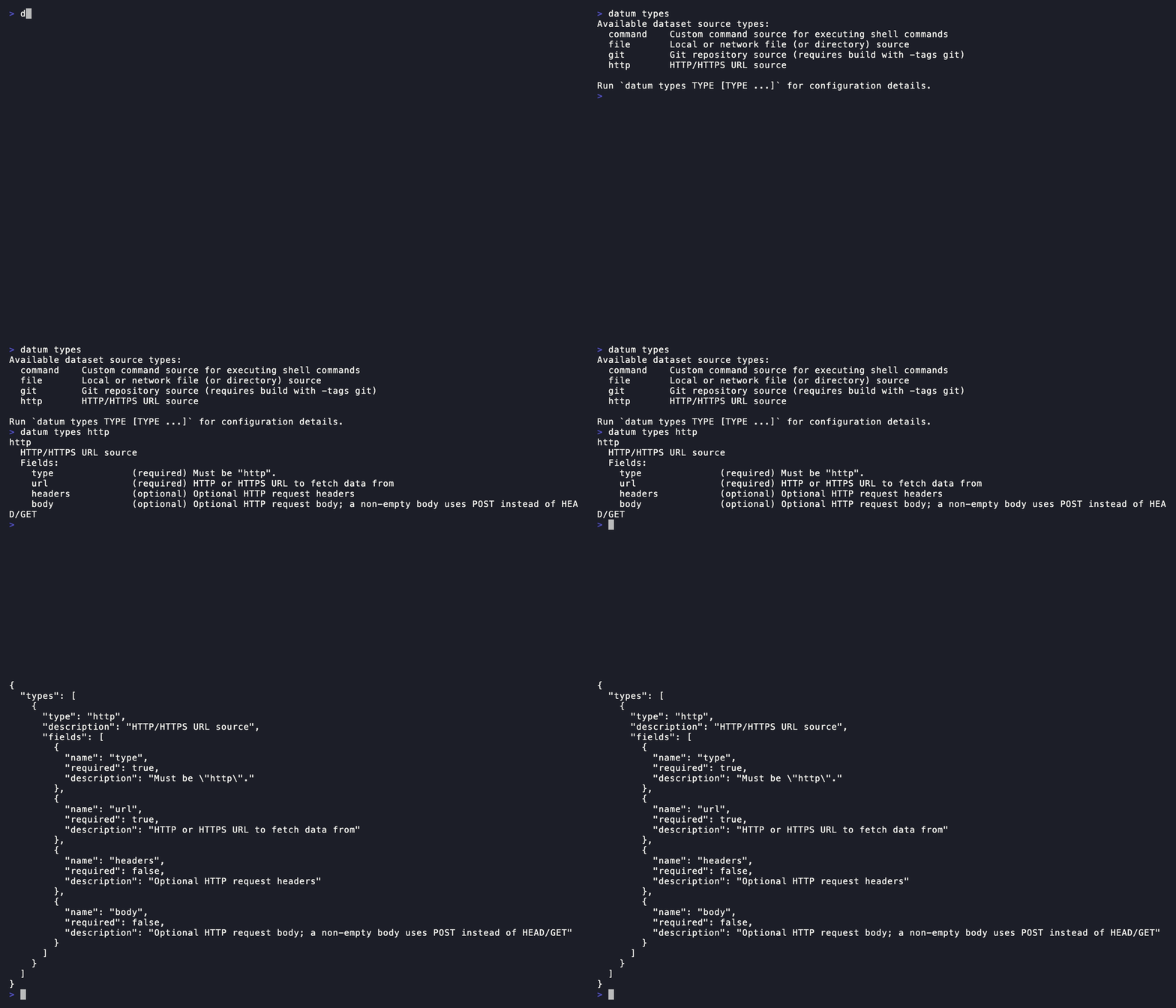
datum types
Lists the dataset source types included in the current build. Pass one or more names to see every required and optional source field for those types. The optional git type only appears in builds that include Git support.
datum types
datum types http file

# Machine-readable output:
datum --json types
datum --json types command
--no-color, NO_COLOR, and --json are supported. An unknown type exits 2; successful output exits 0.
🎬 Watch a live run
datum schema
Prints the complete JSON Schema for .data.yaml to stdout. The output is the exact schema shipped inside that version of the binary, so it can be redirected to a file or consumed by another tool without depending on a network URL.
datum schema
datum schema > data-schema.json
Successful output is always JSON and exits 0; an output error exits 1.
datum init
Creates a new configuration and optionally adds one basic HTTP or file dataset. It refuses to overwrite an existing config and does not create a lockfile.
datum init --id example --type http \
  --source https://example.com/data.csv --target data/example.csv

# Create a valid scaffold for tools that will add datasets later:
datum init --empty

# Global flags still precede the command; init-specific flags follow it:
datum --config datasets.yaml init --id local --type file \
  --source source.csv --target data/local.csv --policy update --ignore
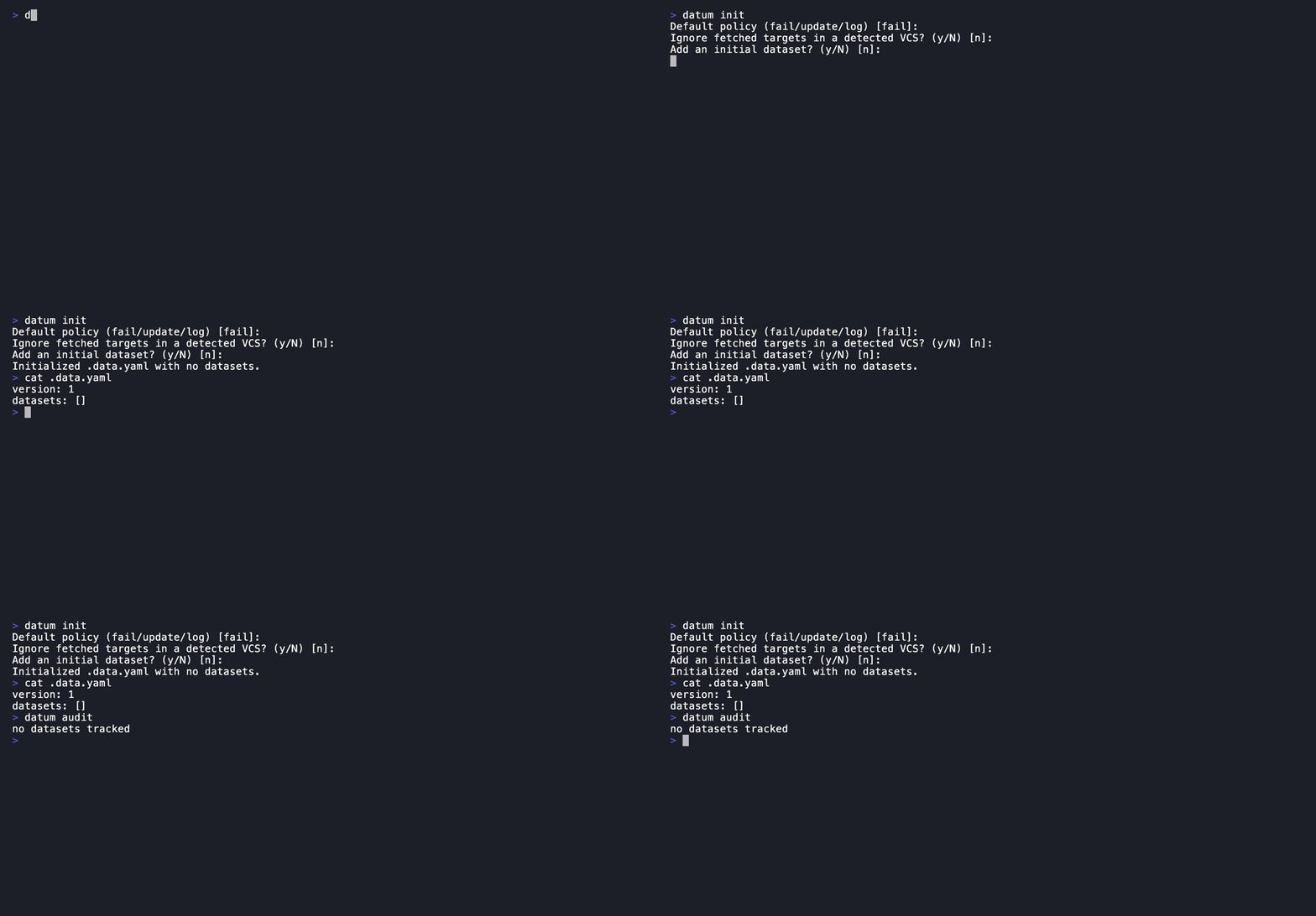
datum init requires no command-line arguments in an interactive terminal. It first prompts for the configuration defaults (policy fail and VCS ignoring false), then asks whether to add an initial dataset, defaulting to no. Declining writes a valid no-dataset configuration. Accepting continues with prompts for dataset ID, source type, source URL/path, and target path; its optional description defaults to the dataset ID.
For scripts or other noninteractive input, supply --id, --type (http or file), --source, and --target. The optional flags are --desc, --policy, and --ignore; none is required.
Use datum init --empty when another tool will populate the configuration later. It writes the minimal schema-valid document version: 1 plus datasets: []. This matches the empty document used by datur’s YAML editing functions. It may be combined with --policy and --ignore to set project defaults, but not with dataset-specific flags.
🎬 Watch the default interactive initialization
Exit codes:
0- Configuration created1- File or VCS update failed2- Invalid/missing input or the config already exists
Next: Handlers for what each source type supports, or Examples to see full working configs.